
Workly integrates with Google Workspace to bring your existing Google tools into your workspace. Connect Gmail, Google Drive, and Google Calendar to work with your email, files, and schedule without leaving Workly.
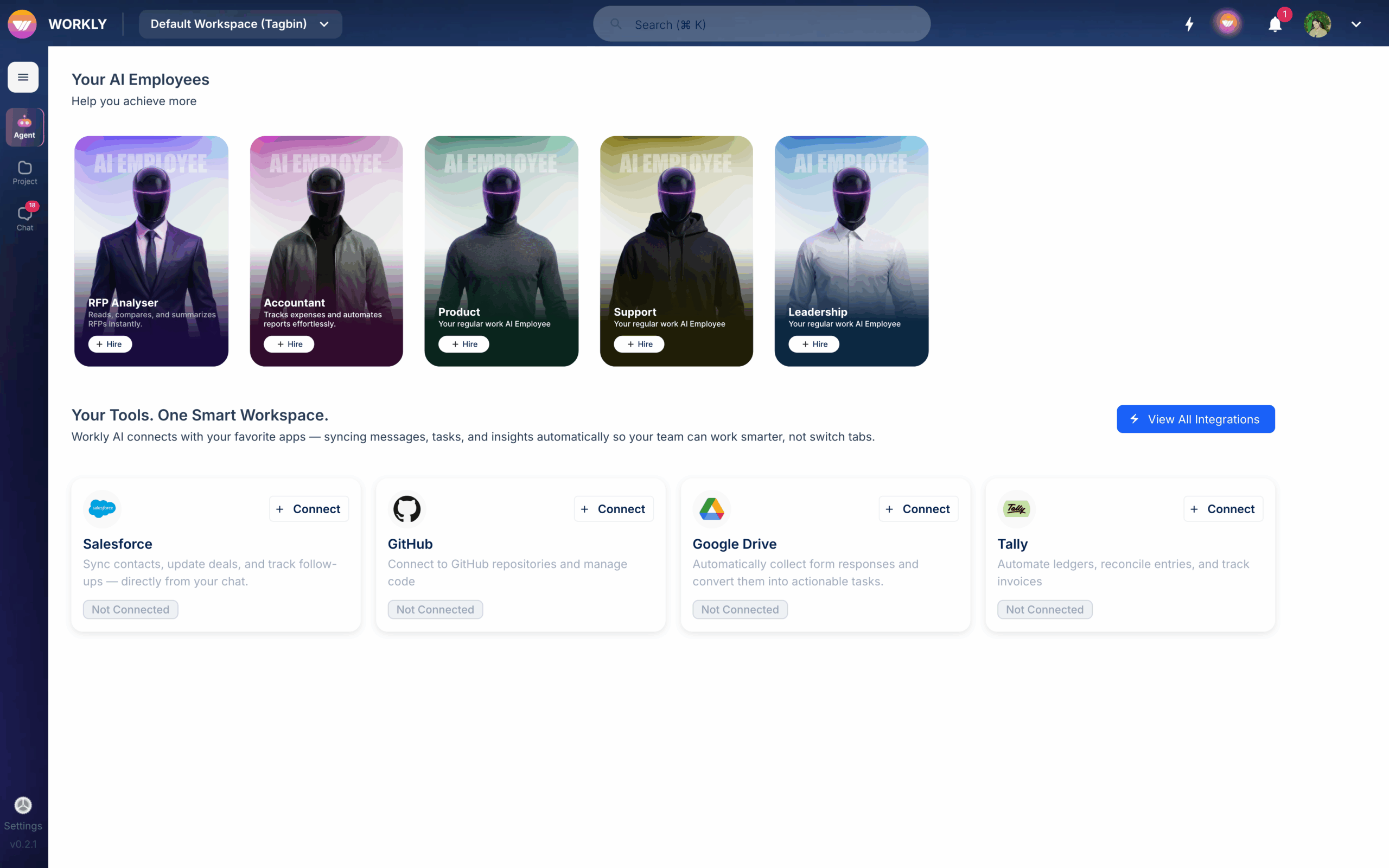
Available Google integrations
Google Gmail
Connect your Gmail account to access your email alongside your work in Workly. View and manage emails without switching to a separate tab.
Google Drive
Connect Google Drive to attach and share Drive files directly within tasks and chat messages. Browse your Drive files from Workly and link them to relevant tasks or conversations.
Google Calendar
Sync your Workly meetings with Google Calendar. When you schedule a meeting in Workly, it automatically appears in your Google Calendar. Events from Google Calendar are visible in your Workly schedule.
How to connect
- Go to the Agents page from the sidebar
- Find the Google integration you want (Gmail, Drive, or Calendar)
- Click Connect
- You’ll be redirected to a Google sign-in screen
- Select your Google account and grant permissions
- You’ll be redirected back to Workly with the connection active
You can also connect Google integrations during initial workspace setup.
Multiple accounts
You can connect multiple Google accounts to the same integration. For example, connect both your work and personal Gmail accounts. Each connection is tracked separately with its own status and permissions.
Manage connections
View and manage your Google connections from the Agents page:
- Click Manage Connections on any connected integration
- See all connected accounts with their status (Active or Expired)
- Disconnect individual accounts or all accounts at once
- View permission levels and expiry dates for each connection
Reconnecting expired tokens
Google OAuth tokens can expire over time. If you see an Expired status on a connection, click Connect New to re-authorise. Your existing connection data will be preserved.
Frequently asked questions
How do I connect Google Calendar to Workly?
Go to the Agents page, find Google Calendar, click Connect, sign in with your Google account, and grant permissions. Your Workly meetings will then sync automatically with Google Calendar.
Can I connect multiple Google accounts?
Yes, click Connect New on any Google integration to add additional accounts. Each account is tracked separately with its own status and permissions.


